

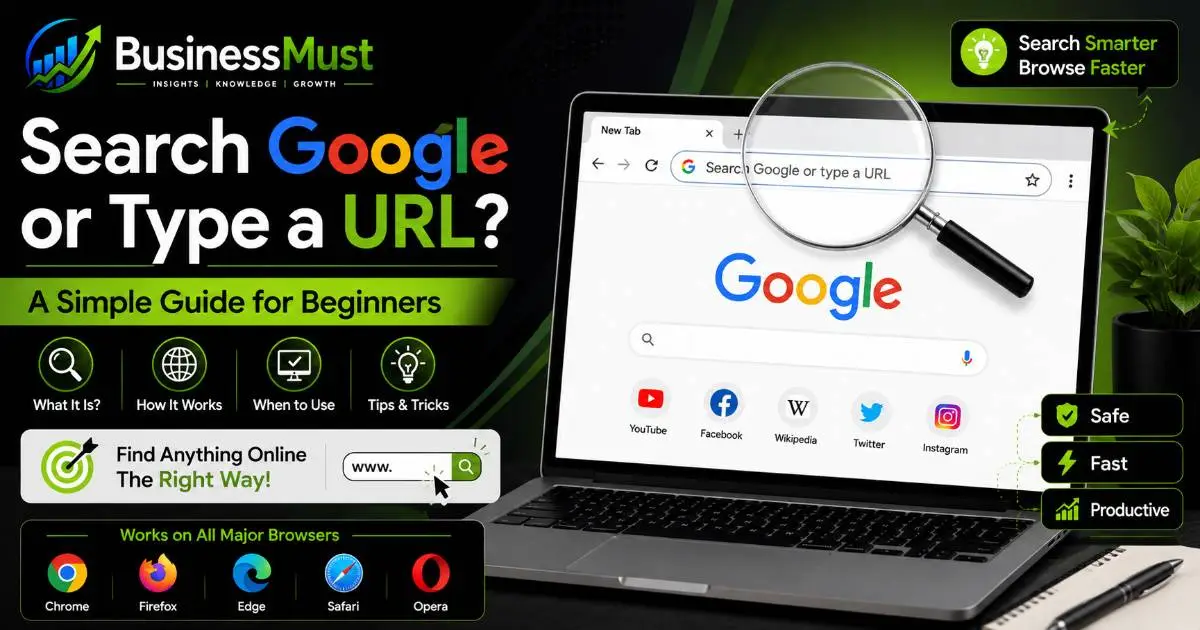
If you’ve ever opened a new browser tab and seen the words “Search Google or type a URL” sitting there in gray letters, you’re not alone in wondering what it actually means. It looks simple, but a lot of people click past it every day without really understanding the two things it’s offering you.
Good news: this is one of the easiest things to learn about using a computer, and once it clicks, it clicks for good. Let’s walk through it together, no jargon, no assumptions that you already know how browsers work.
What Does “Search Google or Type a URL” Mean?
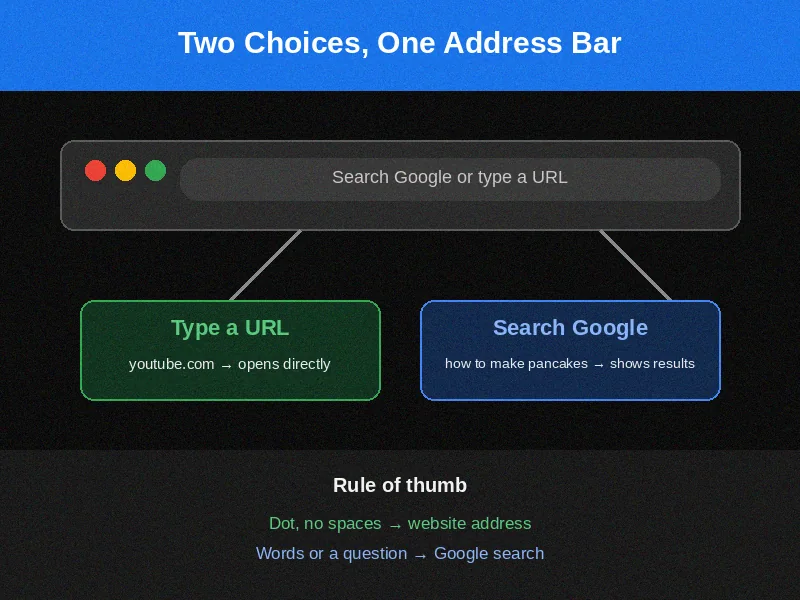
That phrase you see in the box at the top of your browser isn’t a button. It’s not a command either. It’s just a hint, sitting there quietly, telling you what you’re allowed to type into that space.
It’s offering you two choices:
Option 1: Search Google. Type in a question, a few words, or anything you’re curious about. Your browser sends that to Google, and Google hands back a list of websites that might have your answer.
Option 2: Type a URL. If you already know the exact address of a website, like youtube.com or wikipedia.org, you can type that in directly and your browser takes you straight there. No searching, no results page, just the site itself.
Here’s a real example. Say you want to watch a cooking video. If you type “how to make pancakes” into that bar, Google will search the web and show you a bunch of pancake recipe videos and articles to pick from. But if you type youtube.com instead, your browser skips all of that and opens YouTube’s homepage directly.
Neither option is wrong. You’re just choosing between “help me find something” and “take me somewhere I already know.”
And here’s something worth knowing if you’re nervous about computers in general: you cannot break anything by clicking into this box. Typing the wrong thing, misspelling a word, or hitting Enter by accident won’t damage your computer. Worst case, you just get a page you didn’t want, and you can always try again.
What Is the Address Bar (a.k.a. the Omnibox)?
The bar at the top of your browser window, the one with “Search Google or type a URL” written in it, has a nickname: the omnibox. That’s just a fancy word for “the box that does everything.” It used to be that browsers had two separate boxes, one for typing website addresses and a completely different one for searching. Chrome combined them into one bar back in 2008, and every major browser followed that idea. If you want to see everything the address bar can do straight from the source, Google’s own Chrome Help page on searching from the address bar covers it in detail.
That means the skill you’re learning here works pretty much everywhere. Here’s what the same bar looks like across different browsers:
- Google Chrome says “Search Google or type a URL”
- Microsoft Edge says “Search or enter web address”
- Mozilla Firefox says “Search or enter address”
- Apple Safari says “Search or enter website name”
Different wording, same idea. If you learn how this works in Chrome, you already know how it works in Edge, Firefox, and Safari too. That’s genuinely useful if you switch between a work computer and a personal one, or if you help a family member who uses a different browser than you do.
How Does the Browser Know What I Mean?
This is the part that trips people up at first, but the rule behind it is simpler than you’d think.
Your browser is basically checking one thing: does what you typed look like a website address, or does it look like something you’d ask a person?
If what you typed has a dot in it and no spaces, like amazon.com or weather.gov, the browser treats it as a web address and tries to take you there directly.
If what you typed has spaces in it, or reads like a sentence or a question, like “best pizza near me” or “how old is the Eiffel Tower,” the browser treats it as a search and sends it to Google.
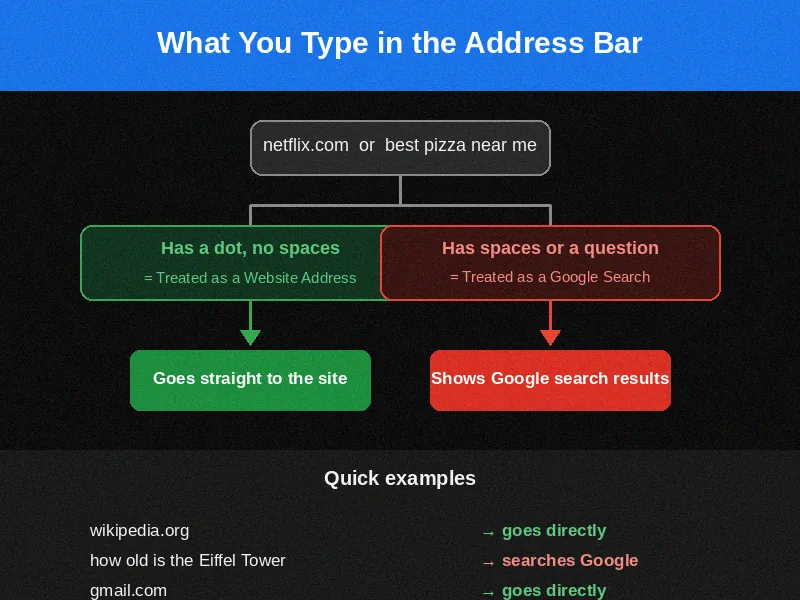
A few side-by-side examples make this click fast:
| What you type | What happens |
| netflix | Searches Google for “netflix” |
| netflix.com | Goes directly to Netflix’s website |
| is it going to rain today | Searches Google and shows a weather answer |
| bbc.co.uk | Goes directly to the BBC’s website |
| gmail login | Searches Google, shows Gmail’s login page as a result |
| gmail.com | Goes directly to Gmail |
Notice the pattern? One dot and no spaces usually means “this is an address.” Words and spaces usually mean “this is a question.” Your browser figures this out instantly, so you don’t have to think about it every single time, but knowing the rule helps when something unexpected happens.
How to Search Google (Step-by-Step)
If you want to look something up and you’re not sure exactly where to find it, searching is your best move.
- Click once inside the address bar at the top of your browser.
- Type what you’re looking for. This can be a question, a few keywords, or even a full sentence. There’s no wrong way to phrase it.
- Press Enter on your keyboard, or click the small magnifying glass icon if you see one.
- You’ll land on a page full of results. Read the short descriptions under each link and click the one that looks most helpful.
One thing that confuses new users: you do not need to type “google.com” first and then search again from there. The address bar already sends your words straight to Google. Typing “google.com” and then searching again is an extra step that isn’t necessary.
How to Go Directly to a Website (Step-by-Step)
If you already know exactly where you want to go, typing the address directly is faster.
- Click into the address bar.
- Type the website’s address. You usually don’t need to type “https://” or “www.” at the beginning. Just typing amazon followed by .com is enough.
- Press Enter.
- Your browser loads that site directly.
If you make a typo and the address doesn’t exist, most browsers won’t leave you stuck on a blank error page. Chrome, for example, will often ask if you meant to search instead, or it’ll show suggestions based on what you typed. So even a typo usually isn’t a dead end.
Common Mistakes New Users Make
These come up constantly, and every single one is fixable once you know what’s happening.
Typing a full sentence and expecting to land on a specific website. If you type “I want to check my email” into the address bar, you won’t go directly to your inbox. You’ll get search results about checking email in general. To go straight to your inbox, you’d type the actual site, like gmail.com or outlook.com.
Typing a company name with a typo and landing somewhere unexpected. If you meant to type chase.com but typed chasebank.com instead, you might land on an ad, a lookalike site, or a completely different business. Always double-check spelling for anything involving money or personal accounts.
Confusing the browser’s address bar with a search box on a website. Amazon has its own search bar. So does YouTube. So does Facebook. Typing into those boxes only searches within that specific site, not the whole internet. It’s easy to mix these up if you’re new to browsing, especially since they often look similar.
Retyping the same website every single day instead of bookmarking it. If there’s a site you visit constantly, like your bank or your email, save yourself the repeated typing by bookmarking it (more on that below).
Troubleshooting Chrome and Other Chromium Browsers
If something’s acting strange in your address bar, it’s almost always one of these fixes.
“I typed a website address but got search results instead.” Check for a missing dot or a typo. netflixcom won’t work, but netflix.com will. Also double-check there’s no accidental space in what you typed.
“The address bar keeps suggesting the wrong thing.” This usually means old autocomplete history is getting in the way. In Chrome, go to Settings, then Privacy and Security, then Clear Browsing Data, and select Browsing History and Autofill Form Data. You can also hover over a single bad suggestion in the dropdown and click the X next to it to remove just that one, without wiping everything.
“My searches are going to a search engine I don’t recognize.” This is a common sign that some software you installed changed your default search engine without asking clearly. In Chrome, go to Settings, then Search Engine, then Manage Search Engines. Delete anything unfamiliar and set Google (or whichever engine you prefer) back as default.
“I see a ‘Not Secure’ warning next to a website address.” This means the site isn’t using an encrypted connection. It’s not necessarily dangerous, but you shouldn’t enter passwords, card numbers, or personal details on a site showing this warning. Stick to sites that show a padlock icon for anything sensitive.
Tips for Older Adults and First-Time Computer Users
If computers still feel unfamiliar, here are a few things that make daily browsing genuinely easier.
It’s completely fine to search for something even if you’re not sure how to spell it. Google is remarkably good at figuring out what you meant. Typing “resturaunt near me” will still get you restaurant results.
If the text in the address bar is hard to read, you can make everything on your screen bigger. In Chrome, click the three dots in the top right corner, go to Settings, then Appearance, and increase the font size. You can also press Ctrl and the plus key together (Cmd and plus on a Mac) to zoom in on any page.
For sites you use often, like your bank, your email, or a specific news site, bookmark them instead of retyping the address every time. Once a page is open, look for a star icon near the address bar and click it. That saves the page so you can return to it in one click later, and it also means you won’t accidentally mistype a banking website, which matters for safety too.
Setting Up a New PC or Smartphone: Address Bar Basics
If you just got a new device, here’s what to know about the address bar specifically.
On a desktop or laptop, the address bar sits at the very top of the browser window, right below the tabs. On a phone or tablet, it’s usually at the top of the screen, though on some phones (especially iPhones) it can also appear at the bottom depending on your settings.
During setup, you’ll often be asked to choose a default search engine. This is the engine that handles anything you type that isn’t a direct website address. Google is the default in most browsers, but you can change it later if you prefer something else.
If you sign into Chrome with a Google account (or into Edge, Firefox, or Safari with their equivalent accounts), your browsing history, bookmarks, and saved passwords can sync across your devices. That means if you bookmark your bank’s website on your laptop, it’ll show up on your phone too, which is genuinely handy when you’re setting up a new device and don’t want to start from scratch.
Teaching This to Students: A Simple Classroom Explanation
If you’re introducing this concept in a classroom or training session, here’s an analogy that tends to land well.
Think of the address bar as a front door. If you already know exactly which house you want to visit, you walk straight to that door and knock, that’s typing a URL. If you don’t know exactly where to go, you ask someone who knows the neighborhood, that’s searching Google, which points you toward the right doors.
A simple in-class exercise: write five examples on the board, a mix of website addresses and questions, and have students say out loud whether each one would search or go directly to a site. For example:
- weather.com (goes directly)
- “what’s the weather like today” (searches)
- wikipedia.org (goes directly)
- “who invented the telephone” (searches)
- spotify.com (goes directly)
This kind of quick recognition exercise builds the instinct faster than explaining the rule alone.
Staying Safe When Searching or Typing a Web Address
For anything involving money, passwords, or personal information, typing the address directly is the safer habit. Here’s why. When you search for your bank’s name, the first few results are sometimes paid ads, and occasionally scammers buy ads that look almost identical to the real bank’s listing, with a slightly different web address. If you click without noticing, you could land on a fake site built to steal your login details.
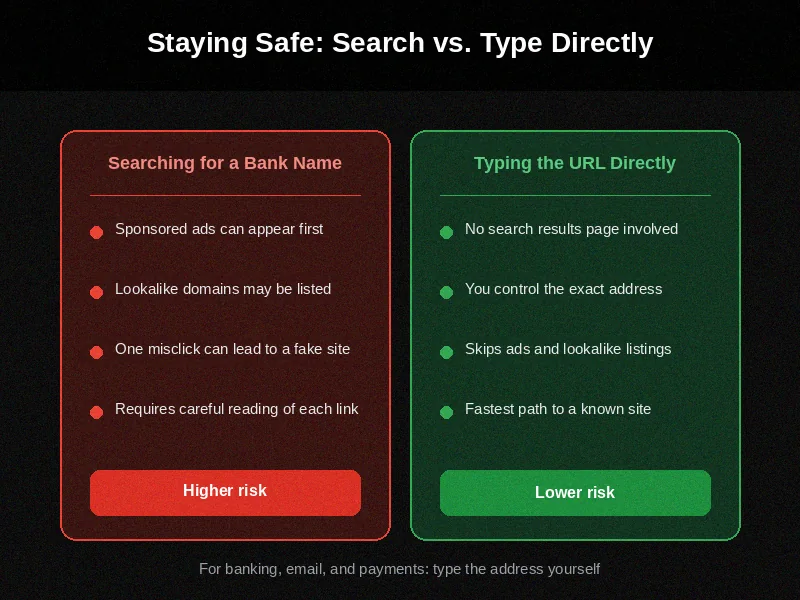
Typing the bank’s actual address yourself skips that risk entirely, since you’re not relying on search results to get you there safely.
A few habits worth building:
Watch for “Sponsored” labels above search results. These are paid ads, not organic results, and while most are legitimate, this is where lookalike scam sites tend to hide.
Double-check the spelling of any address before you enter sensitive information. Scammers rely on people not noticing a swapped letter, like paypa1.com instead of paypal.com.
Look for the padlock icon next to a website address before entering personal details. It means the connection is encrypted, so your information can’t be easily intercepted while it travels between your device and the site. For more on what that warning actually means, Google’s official explanation of the “Not Secure” warning is worth a quick read.
Frequently Asked Questions
What does “Search Google or type a URL” mean?
It’s the placeholder text in your browser’s address bar. It means you can either type words to search Google, or type a website’s exact address to go there directly. Your browser figures out which one you mean based on what you type.
Why did I get search results instead of the website I typed?
This usually happens because of a typo or a missing dot in the address. If your browser doesn’t recognize what you typed as a valid website, it treats it as a search instead.
Is it safe to type my bank’s website directly instead of searching for it?
Yes, and it’s actually the safer option. Typing the address yourself means you’re not relying on search results, which occasionally include ads from scam sites mimicking real businesses.
How do I change my default search engine in Chrome?
Go to Settings, then Search Engine, then Manage Search Engines. From there, you can choose Google, Bing, DuckDuckGo, or another supported option as your default.
What’s the difference between a URL and a search term?
A URL is a specific website address, like businessmust.com. A search term is a word, phrase, or question you want Google to look up for you, like “best browser for beginners.” The address bar accepts both and treats them differently based on what you type.
“Search Google or type a URL” ka matlab kya hota hai?
Ye line aapke browser ke address bar mein dikhti hai, ye koi button ya command nahi hai. Iska matlab hai ki aap us bar mein do cheezein kar sakte hain, ya to kuch search kar sakte hain ya seedha kisi website ka address (URL) type kar sakte hain. Aap jo bhi type karenge, browser khud samajh jayega ki aapko search karna hai ya kisi site par jana hai.
Address bar mein URL type karne aur Google search karne mein kya fark hai?
Agar aapko exact website ka naam pata hai, jaise businessmust.com, to aap wahi type karke seedha us site par pahunch sakte hain. Lekin agar aapko kisi cheez ke baare mein jaankari chahiye aur exact website nahi pata, to aap sawaal ya keywords type karke Google search kar sakte hain, jaise “best laptop for students.”
Address bar mein type karne ke baad search result ki jagah error kyun aata hai?
Aksar ye tab hota hai jab aapne website ka address galat type kiya ho, jaise dot (.) chhoot gaya ho ya spelling mein mistake ho gayi ho. Aisi situation mein browser samajh nahi paata ki ye ek website hai, to wo use search query maan leta hai.
This guide is part of Businessmust‘s collection of beginner-friendly computer and browser guides. If you’re just getting comfortable with using a computer or setting up a new device, it’s worth exploring the basics one step at a time. There’s no rush, and every skill you learn here will keep making browsing easier.
